 sales@dasinfomedia.com


It’s not as simple as typing one prompt and getting the perfect result. We recently tried this for our product BotSpot, and honestly, it turned into a proper experiment. Our idea was very specific:
- A brain-shaped logo
- Made using hexagons/polygons
- With a network / node-style structure inside
Sounds simple… but it wasn’t.
So we tested both tools – Claude Designs and ChatGPT – step by step, using real prompts, real iterations.
Here’s exactly how it went.
🧪 What We Were Trying to Achieve
- Brain silhouette (not abstract blob)
- Proper hexagons (not weird shapes pretending to be hexagons)
- Uneven sizes (to make it look natural)
- Small nodes + connecting lines (like a neural network)
🔷 Part 1: Our Experience with Claude Designs
Step 1: Starting with the Basic Idea
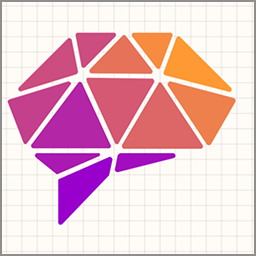
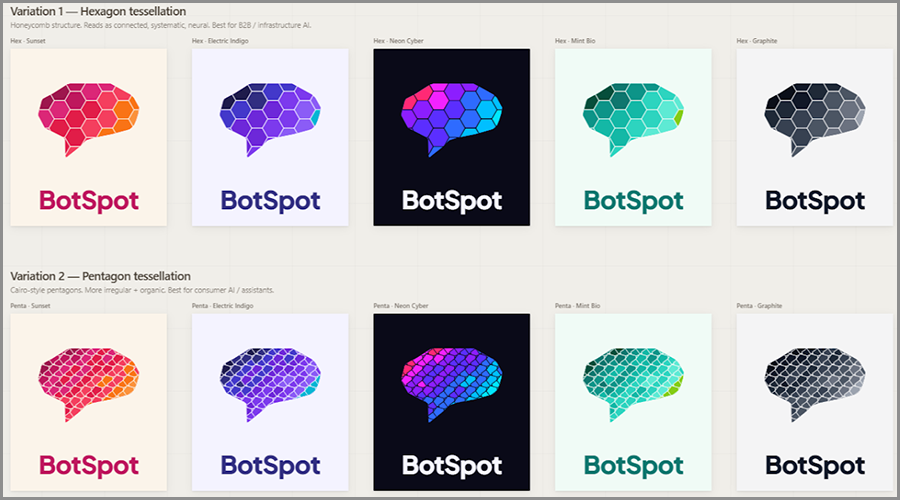
Prompt: “I want to create a logo for my product, BotSpot. I have attached a reference image. I want variations in that, like instead of triangle shapes designed in the logo, I want 1 Hexagon Variation design and 1 Pentagon variation design. For each variation, I want to color 5 variations that are best for the AI product logo. Here is my product info https://botspot.us/”
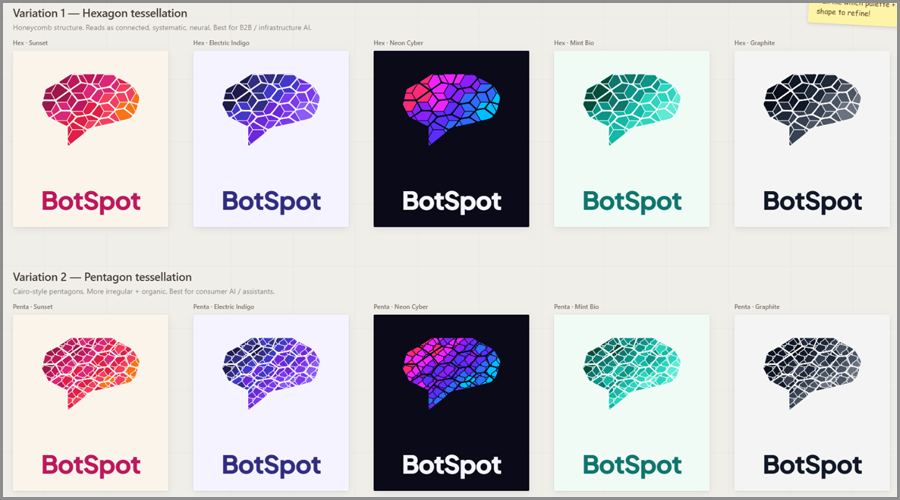
What I felt: At first, we actually liked the output.
- It gave multiple variations quickly.
- Colors were quite nice (better than expected)
- Good for getting ideas
But… the shapes didn’t really feel “accurate”. It looked more like inspiration, not something I could actually use.
Step 2: Trying to Control the Structure
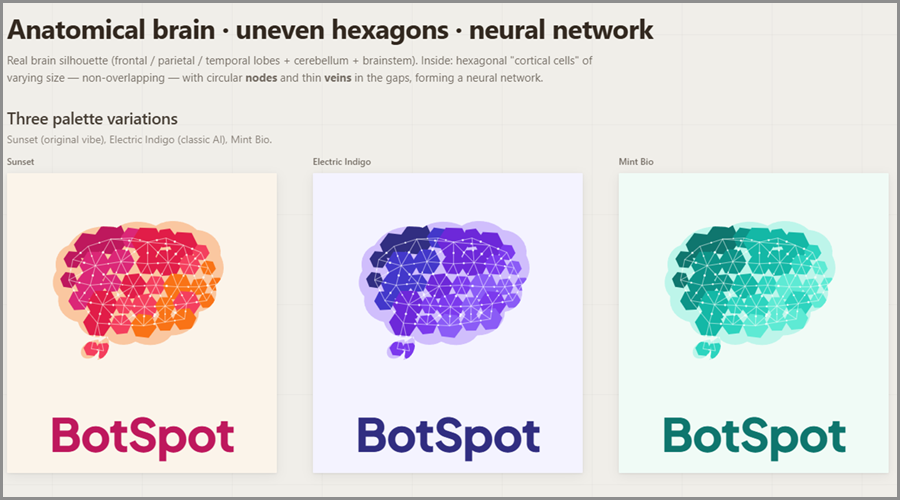
Prompt: “The outline shape of the logo is similar to a brain, and the shapes inside it. See here, I am attaching PNG, make proper main icon, same will remain same as reference brain, just change shapes inside it.”
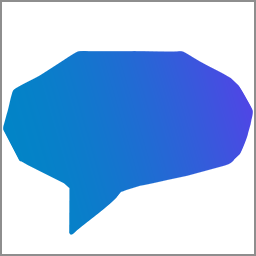
What we noticed: This is where things started going off.
- The brain shape wasn’t really clear.
- It kind of ignored the “brain” vs “chat bubble” issue
- Internal shapes didn’t follow the structure properly
It felt like the AI understood some part, but not the full idea.
Step 3: Giving Very Clear Instructions
Prompt: “These variations do not match my idea. I want a human brain shape, not a chat or filled pattern.
Create a human brain-shaped icon using geometric shapes arranged like a mosaic.
The shapes should be hexagons, with uneven sizes and slightly different orientations. Arrange them to form a clear brain silhouette, similar to a segmented polygon style.
Each hexagon should be separated with visible spacing (no overlap), creating clean gaps between shapes, which creates a node-style pattern like the reference image has. The layout should feel balanced but not perfectly symmetrical.”
My honest reaction:
- Hexagons didn’t look properly structured
- The node structure still felt off
- The brain shape wasn’t really clear
- It started looking like random icon
👉 Claude is good for ideas, but not great for precision control
🔶 Part 2: Our Experience with ChatGPT
Step 1: Starting from the Same Base Idea
Prompt: “In this image, I want Hexagons instead of triangles. See, this is a basic brain shape. I want to arrange hexagons, like triangles, set in the reference image.”
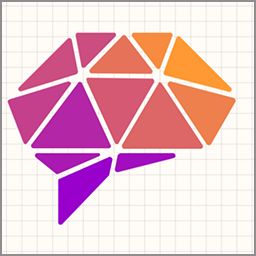
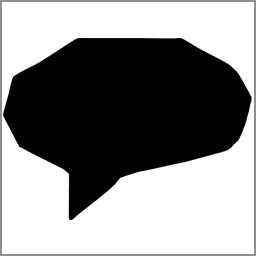
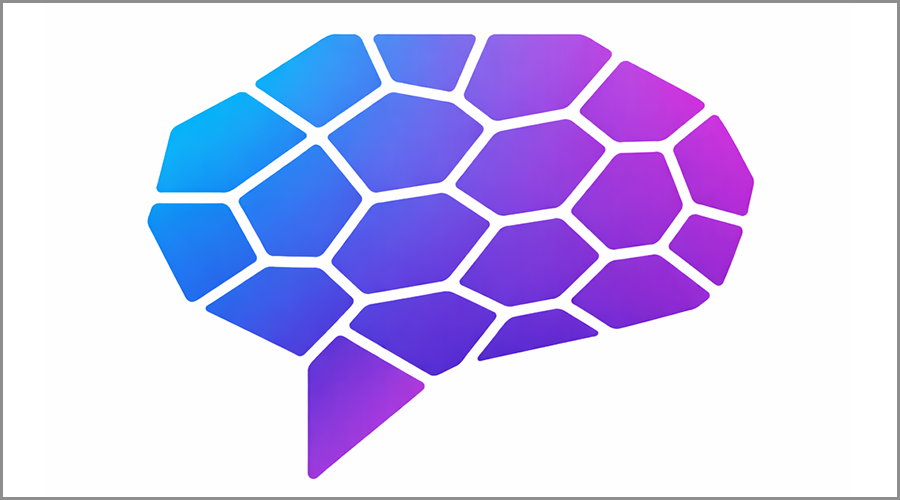
What we noticed immediately:
This was already better aligned.
- It actually followed the idea of replacing triangles with hexagons
- Brain structure was still visible
- It didn’t drift into random shapes
Not perfect – but definitely closer.
Step 2: Precision Correction
Prompt: “This is better, but creates clean gaps between shapes, which creates a node-style pattern like the reference image has, with sharp edges.”
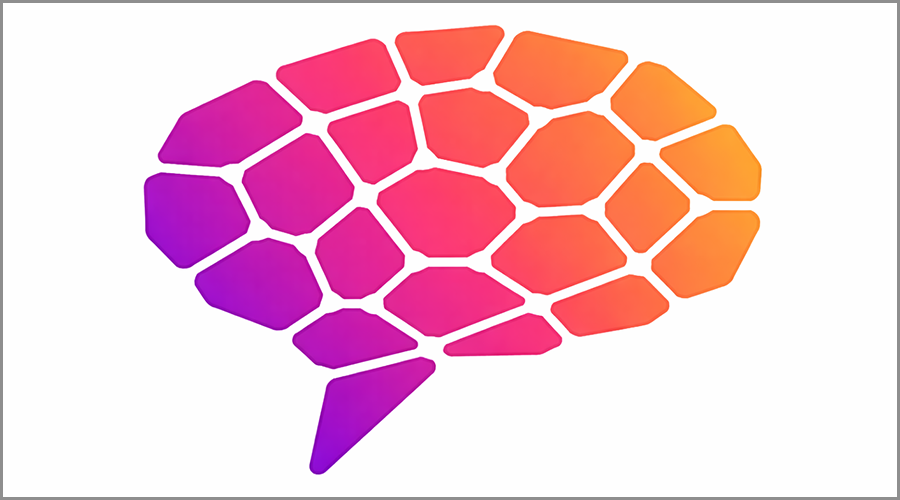
What changed:
- Shapes became sharper
- Looked more like real hexagons
- Started getting that “tech / AI” feel
This is where we saw something important:
👉 It actually improved based on feedback
Step 3: Final Push (After Multiple Tries)
Prompt: “In this icon, the hexagon shapes used do not look like hexagons, so I want the hexagon shapes to look like hexagons. Also, I want a node-style structure, which is created here. I want uneven hexagons, but they must look like hexagons. I want hexagons like the second image I have attached.”
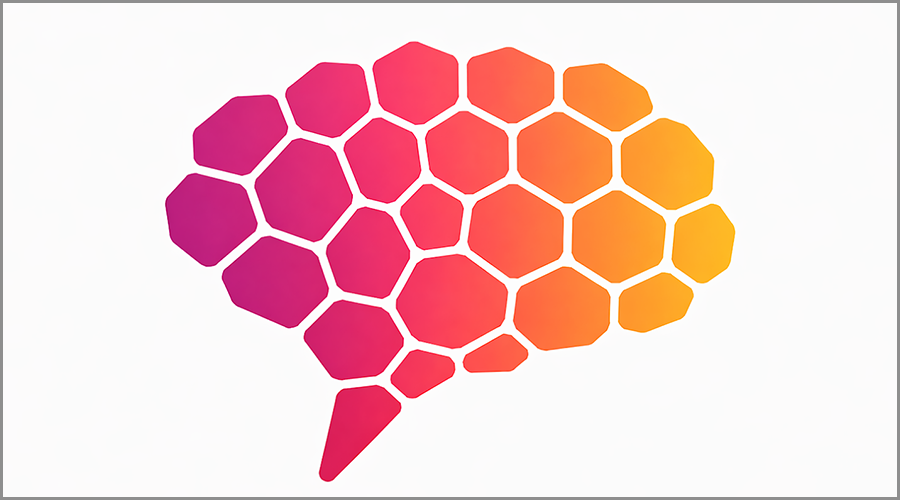
Final feeling:
This was what we had in mind.
- Proper hexagon shapes
- Uneven but still clean
- Node-style structure visible
- Brain shape maintained
⚖️ Comparison
| Aspect | Claude Designs | ChatGPT |
|---|---|---|
| Usage Type | ⚡ Fast start | 🔄 Improves |
| Idea Generation | 💡 Many ideas | 🎯 Focused ideas |
| Color Direction | 🎨 Strong colors | ⚪ Limited colors |
| Shape Control | ❌ Low control | ✅ Precise shapes |
| Understanding Instructions | ⚠️ Partial | 🧠 Accurate |
| Iteration | 🔁 Weak | 🔄 Strong |
| Workflow | 🧭 Browse style | 🧩 Designer-like |
| Effort | 🙂 Low | ⚙️ More effort |
| Output | ✨ Inspiration | 🚀 Usable result |
Conclusion
The real difference isn’t the first result – it’s how the AI reacts when you correct it.
👉 Claude is great for ideas and color inspiration
👉ChatGPT is better for control and step-by-step refinement
Claude helps you think. ChatGPT helps you build. If you want real AI solutions or have any questions, contact us today.
Related Blogs




 +1 813 467 8539
 sales@dasinfomedia.com